Remove Mac Malware: 8 Steps to Clean and Secure Your System
Most Mac infections hide in launch agents and browser extensions, not in obvious application folders, making standard deletion ineffective against persistent threats.

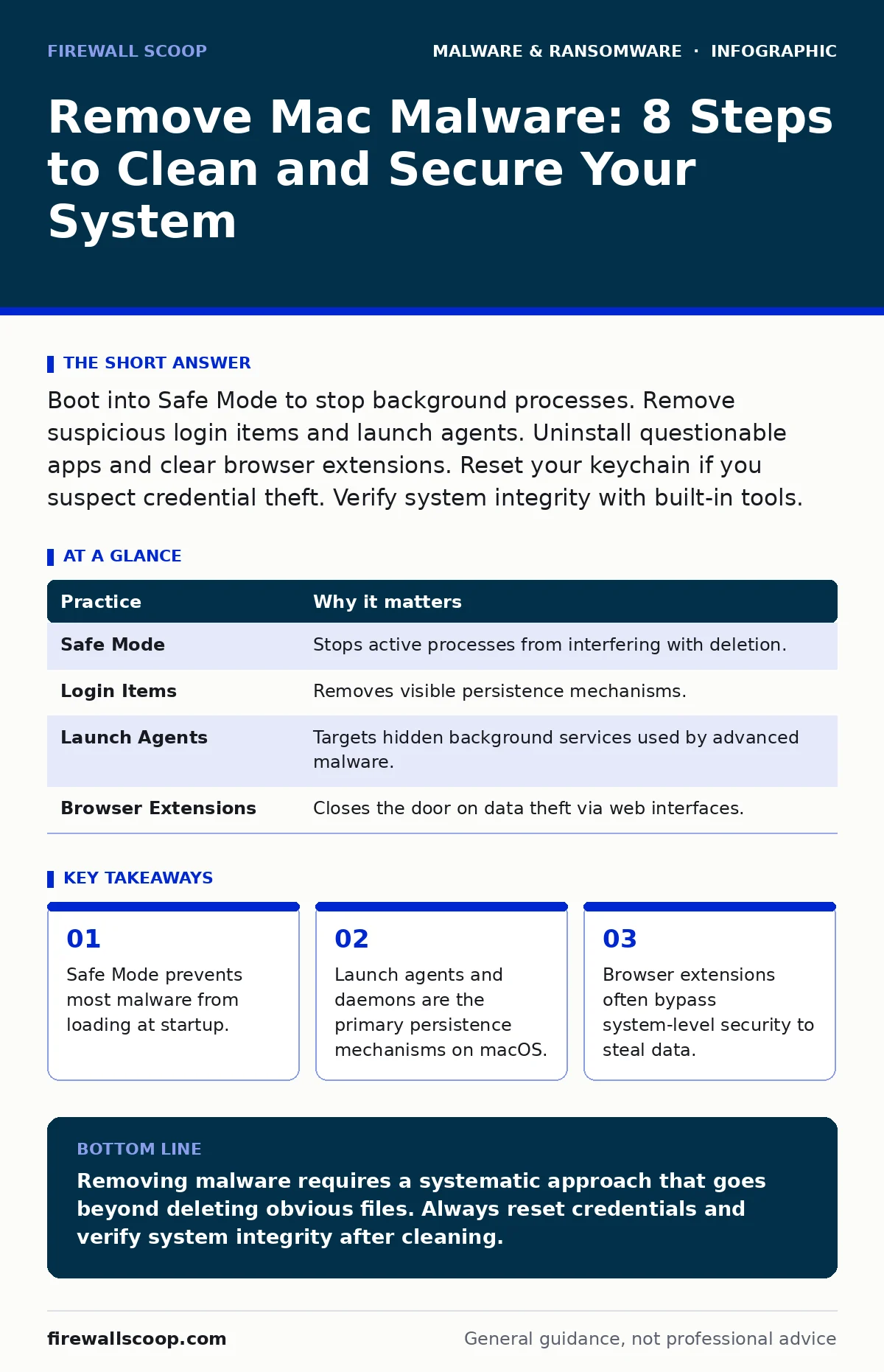
Boot into Safe Mode to stop background processes. Remove suspicious login items and launch agents. Uninstall questionable apps and clear browser extensions. Reset your keychain if you suspect credential theft. Verify system integrity with built-in tools.
Boot into Safe Mode to Neutralize Active Threats
Malware often runs as a background process that resists deletion while active. If you try to delete a file that is currently executing, the operating system may lock the file or reload it immediately. Safe Mode clears kernel extensions and disables third-party login items, creating a quiet environment for remediation. This step stops the bleeding before you attempt surgery.
To enter Safe Mode, restart your Mac and hold the Shift key immediately after the startup chime or power button. Keep holding it until you see the login window. You will see "Safe Boot" in the top right corner. Log in and proceed with the next steps. This mode slows down the system but ensures that no malicious scripts are running in the background.
Inspect Login Items and Startup Scripts
Many pieces of malware survive reboots by adding themselves to the list of programs that launch when you log in. This is called persistence. The attacker wants their code to run every time you use the computer, ensuring they maintain access even if you close the infected application. Checking these items is the first line of defense against recurring infections.
Go to System Settings, then Users & Groups, and select Login Items. Look for any application you do not recognize or that you did not intentionally install. Drag suspicious entries to the Remove button. Also check the "Open at Login" section for hidden scripts. If you see a generic name like "Helper" or "Update," investigate its location before deleting it.
Hunt Down Launch Agents and Daemons
Login items are visible in the settings menu, but more sophisticated threats hide in launch agents and daemons. Launch agents run when you log in, while daemons run in the background regardless of user activity. These are located in specific system directories that are not shown in the standard file browser. This is where most "invisible" malware resides.
Open Finder and use the Go menu to select "Go to Folder." Type /Library/LaunchAgents and check for files with unusual names. Repeat this for /Users/YourName/Library/LaunchAgents. Do not delete files if you are unsure of their function, as removing system components can break your OS. Move suspicious files to an external drive for analysis or quarantine them in a separate folder.
| Practice | Why it matters |
|---|---|
| Safe Mode | Stops active processes from interfering with deletion. |
| Login Items | Removes visible persistence mechanisms. |
| Launch Agents | Targets hidden background services used by advanced malware. |
| Browser Extensions | Closes the door on data theft via web interfaces. |
Purge Malicious Browser Extensions
Browsers are a high-value target for attackers because they have access to cookies, passwords, and session tokens. A malicious browser extension can operate entirely within the browser sandbox, bypassing some system-level security controls. This is a common vector for infostealers that capture login credentials without touching the file system.
Open your browser settings and navigate to the Extensions or Add-ons page. Review every installed extension. If you do not remember installing it, remove it. Even extensions from legitimate developers can be compromised or used for tracking. Clear your browser cache and cookies after removal to discard any stolen session data. This step is critical if you suspect your accounts were accessed without your permission.
Reset Your Keychain and Credentials
If malware has been on your system, you must assume that saved passwords and certificates are compromised. The macOS Keychain stores your passwords, keys, and certificates in an encrypted database. Some malware specifically targets this database to harvest credentials for later use. Resetting this store forces you to re-authenticate, breaking the chain of stolen data.
Open Keychain Access from the Utilities folder. Look for the "login" keychain. If you suspect compromise, you can delete the keychain file and let the system recreate it. Note that this will remove all saved passwords. You will need to reset passwords for all your accounts. This is a tedious but necessary step to ensure that stolen credentials cannot be used to access your services.
See also: 7 Computer Virus Mistakes That Leave Your System Exposed
Verify System Integrity with Built-in Tools
macOS includes built-in tools to check the health of the operating system files. Disk Utility can verify and repair disk permissions and file system errors. This is not a security tool per se, but malware often corrupts system files to hide its presence or to exploit vulnerabilities. Ensuring the system files are intact removes potential footholds for attackers.
Open Disk Utility from the Utilities folder. Select your main drive and click "First Aid." Run the check and repair any issues found. This process can take some time, depending on the size of your drive. Do not interrupt the process. While this does not remove malware, it ensures that the underlying system is stable and free from corruption that could be exploited.
Review User Accounts and Admin Privileges
Malware often creates hidden user accounts to maintain access. These accounts may have administrative privileges, allowing the attacker to install more software or modify system settings. Reviewing your user accounts ensures that no unauthorized users have been added to your system. This is a fundamental step in securing your machine against remote access trojans.
Go to System Settings and then Users & Groups. Look for any user accounts you do not recognize. If you find one, delete it immediately. Also, check the privileges of your existing accounts. Ensure that only trusted users have administrative rights. Standard users have limited permissions, which reduces the risk of system-wide compromise.
Implement Offline Backups for Recovery
Even after cleaning your system, you may have lost data or suffered configuration changes. Having a recent backup allows you to restore your system to a known good state. This is particularly important if the malware was ransomware, which encrypts your files and demands payment for decryption. An offline backup ensures that you have a clean copy of your data that the malware could not reach.
Use Time Machine to create regular backups to an external drive that is not always connected. Disconnect the drive after the backup completes. This prevents ransomware from encrypting the backup as well. If your system becomes unusable, you can restore from this backup. This is a critical component of your overall security strategy, reducing the impact of any future incidents.
Key takeaways
- Safe Mode prevents most malware from loading at startup.
- Launch agents and daemons are the primary persistence mechanisms on macOS.
- Browser extensions often bypass system-level security to steal data.
Removing malware requires a systematic approach that goes beyond deleting obvious files. Always reset credentials and verify system integrity after cleaning.
Frequently asked questions
Can a Mac get a virus?
Yes, Macs can be infected by malware, including viruses, trojans, and ransomware, though they are less frequently targeted than Windows systems.
Is Safe Mode enough to remove malware?
No, Safe Mode only prevents malware from running. You must still manually delete the infected files and remove persistence mechanisms.
How do I know if I have malware?
Signs include slow performance, pop-ups, unknown apps, and increased network activity. Use built-in tools and check login items for clues.
Should I reinstall macOS?
Reinstalling is the most thorough method but is time-consuming. It is recommended if you cannot identify and remove all traces of the infection.
How this guide was produced: written by the Firewall Scoop editorial team with AI assistance, checked against the public references listed below, and reviewed when the facts change. See our editorial policy or report an error.