7 Computer Virus Mistakes That Leave Your System Exposed
Most infections succeed because users trust file extensions and ignore silent permission prompts that bypass standard security controls.

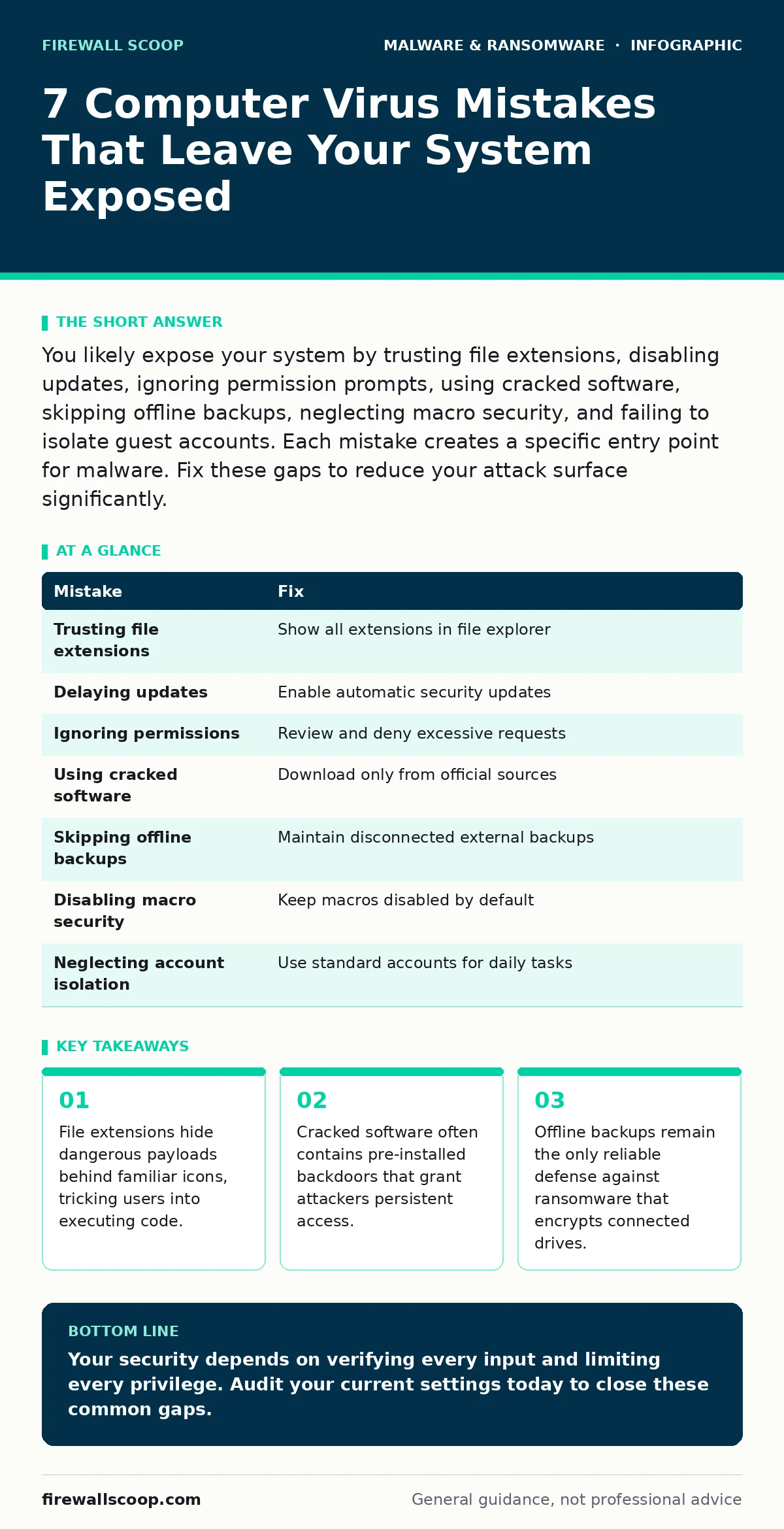
You likely expose your system by trusting file extensions, disabling updates, ignoring permission prompts, using cracked software, skipping offline backups, neglecting macro security, and failing to isolate guest accounts. Each mistake creates a specific entry point for malware. Fix these gaps to reduce your attack surface significantly.
Mistake 1: Trusting file extensions over file names
You assume a file named "Invoice.pdf.exe" is a document because the icon looks like a PDF. Windows hides known extensions by default, so you see only "Invoice.pdf". The executable part runs first. This behavior allows attackers to disguise malicious scripts as harmless documents. You execute the code before realizing the true nature of the file.
Why it hurts:
The operating system prioritizes the extension, not the name. When you double-click the file, the system launches the executable program instead of the document viewer. This grants the virus immediate execution privileges. The malware can then install itself in system directories. It may also disable security tools before you notice any unusual behavior.
The fix:
Enable the setting to show file extensions in your file explorer. This reveals the true format of every file. Check the extension before opening any attachment from email or downloads. If you see an executable extension like .exe, .bat, or .scr attached to a document name, delete it immediately. Verify the source with the sender through a separate channel.
Mistake 2: Delaying operating system updates
You postpone updates because they interrupt your workflow or require a restart. You assume your current version is stable enough to wait another week. Attackers exploit known vulnerabilities in older versions within hours of disclosure. Your delay gives them a wide window to deploy targeted exploits.
Why it hurts:
Unpatched systems contain known holes that malware authors actively target. These vulnerabilities often allow remote code execution without user interaction. The virus can enter through network services or shared folders. Once inside, it escalates privileges to gain full control. You lose the ability to manage your own system settings.
The fix:
Enable automatic updates for your operating system and critical applications. Schedule restarts during low-activity periods to minimize disruption. If automatic updates are not possible, check for patches weekly. Apply security updates immediately upon release. Delaying even a few days increases your exposure to active exploitation campaigns.
Mistake 3: Ignoring permission prompts
You click "Allow" on permission requests without reading them. You assume the software you are installing needs access to your camera, microphone, or contacts. Many applications request excessive permissions to gather data or install additional components. You grant these rights silently, enabling surveillance or data theft.
Why it hurts:
Malware often masquerades as legitimate software during installation. By granting broad permissions, you allow the virus to access sensitive files and network resources. It can monitor your keystrokes or record your screen. This access persists even after you close the application. The virus uses these permissions to exfiltrate data to remote servers.
The fix:
Review every permission request carefully. Deny access to features the application does not strictly need. If a text editor asks for camera access, reject the request. Use sandboxing tools to run untrusted software in isolated environments. This limits the damage if the software turns out to be malicious.
Mistake 4: Using cracked or pirated software
You download cracked software to avoid licensing fees. You assume the crack is just a key generator or a patch. These files often contain remote access trojans or infostealers. The creator of the crack has full control over your system. You are inviting an attacker into your network willingly.
Why it hurts:
Cracked software bypasses integrity checks that verify the code is safe. The malicious code is embedded deep within the application. It can persist even after you uninstall the software. Attackers use this access to steal credentials, crypto wallets, and personal files. You have no recourse because the source is illegal and untraceable.
The fix:
Use only official channels to download software. Utilize open-source alternatives if commercial licenses are too expensive. Check digital signatures to verify the publisher. Avoid any tool that claims to bypass licensing. The risk of infection far outweighs the cost of legitimate software.
Mistake 5: Skipping offline backups
You back up your files to a cloud service or a network drive. You assume this is sufficient protection against data loss. Ransomware encrypts any drive that is connected to your computer at the time of infection. Your backups become encrypted just like your primary files. You lose everything simultaneously.
Why it hurts:
Connected backups are vulnerable to the same malware that targets your main drive. The virus detects mounted drives and encrypts them automatically. You cannot restore your data without paying the ransom or losing it entirely. This mistake turns a manageable incident into a catastrophic data loss event.
The fix:
Maintain offline backups on external drives that are disconnected after use. Follow the 3-2-1 rule: 3 copies, 2 different media types, 1 offsite. Test your backups regularly to ensure they are readable. Refer to our guide on offline backups for detailed implementation strategies. This ensures you have a clean copy to restore from.
See also: Antivirus Quarantine: Small Business Recovery and Data Safety
Mistake 6: Disabling macro security
You enable macros in documents to run automated tasks. You assume the document is safe because it came from a known contact. Attackers embed malicious code in macros to execute viruses. You unknowingly run this code when you enable content. The virus installs itself immediately.
Why it hurts:
Macros have high privileges within the application. They can execute system commands and download additional payloads. Disabling security allows these commands to run without warning. The virus can bypass traditional antivirus detection by living in memory. This technique is common in targeted phishing attacks.
The fix:
Keep macro security settings at the highest level. Disable all macros by default. Only enable them for documents from trusted sources that you explicitly expect to contain macros. Use application whitelisting to prevent unauthorized scripts from running. This reduces the risk of execution-based attacks.
Mistake 7: Neglecting account isolation
You use the same administrator account for daily tasks and software installation. You assume convenience outweighs the risk. If a virus infects your primary account, it has full control over the system. It can modify system files, disable security software, and create new admin accounts.
Why it hurts:
Administrator accounts have unrestricted access to the operating system. Malware in this context can persist across reboots and updates. It can hide its presence from standard security tools. You cannot remove the virus without reinstalling the entire system. This mistake amplifies the impact of any initial infection.
The fix:
Create a standard user account for daily use. Use the administrator account only for installing software or changing system settings. This limits the damage a virus can cause. It prevents unauthorized changes to critical system files. Refer to our guide on remote access trojans to understand how attackers exploit privileged accounts.
| Mistake | Fix |
|---|---|
| Trusting file extensions | Show all extensions in file explorer |
| Delaying updates | Enable automatic security updates |
| Ignoring permissions | Review and deny excessive requests |
| Using cracked software | Download only from official sources |
| Skipping offline backups | Maintain disconnected external backups |
| Disabling macro security | Keep macros disabled by default |
| Neglecting account isolation | Use standard accounts for daily tasks |
Key takeaways
- File extensions hide dangerous payloads behind familiar icons, tricking users into executing code.
- Cracked software often contains pre-installed backdoors that grant attackers persistent access.
- Offline backups remain the only reliable defense against ransomware that encrypts connected drives.
Your security depends on verifying every input and limiting every privilege. Audit your current settings today to close these common gaps.
Frequently asked questions
Do antivirus programs stop all computer viruses?
Antivirus software detects known threats but may miss new or custom malware. It is a layer of defense, not a complete shield. You must combine it with safe habits and system hardening.
How do I know if a virus is hiding in memory?
Standard scans may miss fileless malware. Specialized tools perform memory forensics to detect active processes. Look for unusual CPU usage or network connections.
Can a virus infect my phone?
Yes, mobile devices are vulnerable to malicious apps and links. Keep your OS updated and install apps only from official stores. Review permissions carefully.
How this guide was produced: written by the Firewall Scoop editorial team with AI assistance, checked against the public references listed below, and reviewed when the facts change. See our editorial policy or report an error.