7 Phishing Mistakes That Bypass Your Defenses
Most phishing failures occur because users ignore protocol mismatches and accept default browser behaviors that hide the true sender identity behind cosmetic labels.
You fall for phishing when you trust visual cues over technical indicators. Verify the domain in the address bar, check for HTTPS certificates, and disable auto-login features. These small habits stop attackers from stealing credentials or installing malware through deceptive links and attachments.
Mistake 1: Trusting the Display Name
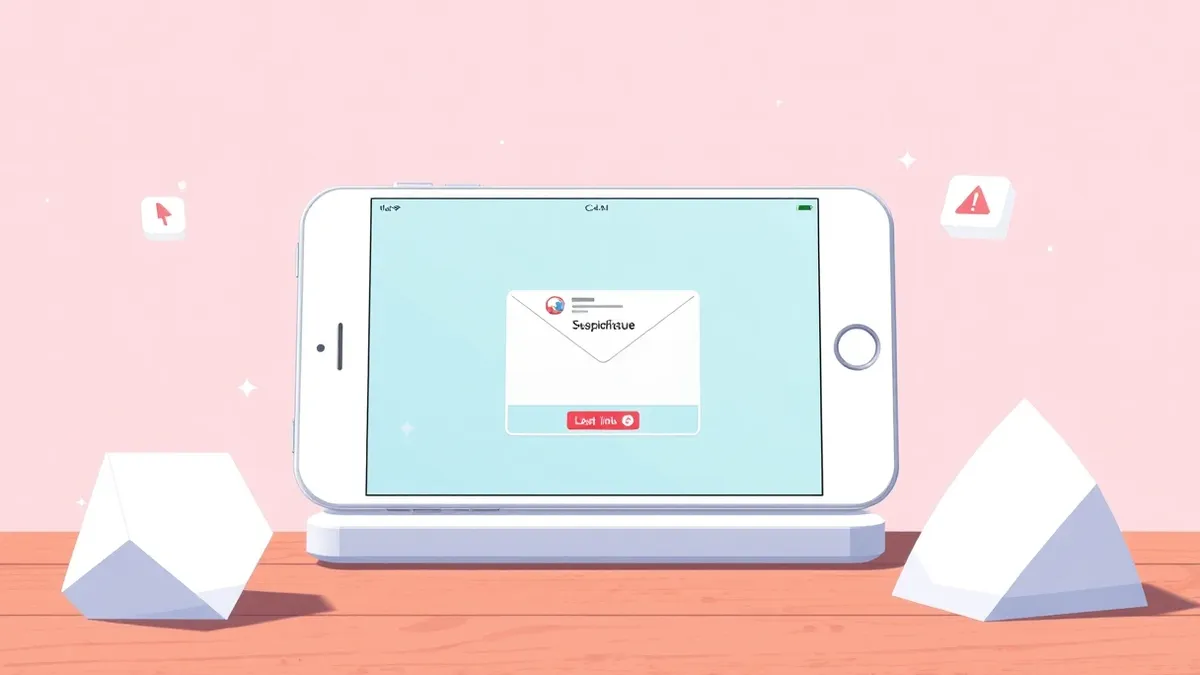
Why it hurts: Email clients show a friendly name, such as "IT Support," while the actual sender address remains hidden in the header. Attackers register domains that look similar to yours or use free email services. You see a trusted name but receive a message from an unrelated source. This disconnect allows social engineering to bypass your initial suspicion. You may reply with sensitive data or click a link because the name matches your expectations. The visual cue overrides your logical check of the underlying infrastructure.
The fix: Expand the sender field to reveal the full email address before opening any attachment or clicking any link. Configure your email client to always show the full address in the inbox view. If the domain does not match the organization you expect, treat the message as suspicious. This extra second of verification prevents you from engaging with imposters who rely on your habit of scanning only names.
Mistake 2: Ignoring URL Mismatches
Why it hurts: Hovering over a link reveals the destination, but many users skip this step. Attackers use URL shorteners or cosmetic links that display a trusted name but redirect to a malicious site. Even if the link looks correct, the underlying domain may be newly registered or misspelled. You enter your credentials on a page that mirrors the real service. The browser shows a secure connection, but the certificate belongs to the attacker. This mistake turns a simple click into a credential theft event.
The fix: Always hover over links to view the true destination in the status bar. Do not click if the domain differs from the expected service. Check for subtle misspellings or unexpected subdomains. If you must visit a login page, type the address manually into the browser. This practice ensures you connect to the legitimate server rather than a replica designed to harvest your login details.
Mistake 3: Accepting Default Browser Behavior
Why it hurts: Modern browsers prioritize speed and convenience over security. They may auto-complete addresses, remember passwords, and restore previous sessions. Attackers exploit these features by creating pages that trigger auto-fill. If your browser saves credentials for a fake site, it may offer them next time you visit the real site, causing confusion. Worse, the browser may trust a malicious site if you previously visited a compromised page. This behavior reduces the friction for attackers to capture your data.
The fix: Configure your browser to ask for permission before saving passwords. Disable auto-fill for sensitive fields. Use a dedicated password manager that only fills data on verified domains. Clear your cache and cookies regularly. These settings force you to interact consciously with each login attempt. You maintain control over where your credentials go, reducing the risk of accidental submission to phishing sites.
Mistake 4: Overlooking Mobile Security Gaps
Why it hurts: Mobile email apps often strip headers and simplify link previews. You lose the ability to hover over links or inspect the full sender address. Attackers know this and target mobile users with shorter, more urgent messages. The reduced screen real estate hides warning signs. You may tap a link without seeing the full URL. The mobile browser may not display certificate details as clearly as a desktop browser. This environment makes it easier for attackers to bypass your scrutiny.
The fix: Use a mobile browser that displays the full URL and certificate status. Configure your mobile email app to show the full sender address. Avoid opening attachments on mobile devices unless you have verified them on a desktop. Consider using a separate app for work email that enforces stricter security policies. These steps compensate for the limitations of mobile interfaces and keep you aware of potential threats.
Mistake 5: Disabling Two-Factor Authentication
Why it hurts: Two-factor authentication adds a layer of protection beyond passwords. Without it, a stolen password grants full access. Attackers use phishing to capture passwords, knowing that many users rely solely on this single factor. Even if you detect the phishing attempt later, the damage is done. The attacker has already accessed your account. This mistake removes the safety net that could have stopped unauthorized access. You leave your digital identity exposed to brute force and credential stuffing attacks.
The fix: Enable two-factor authentication on all accounts that offer it. Use an authenticator app or hardware token instead of SMS, which can be intercepted. Ensure your recovery codes are stored securely offline. This measure ensures that even if your password is stolen, the attacker cannot access your account without the second factor. It significantly raises the barrier for successful phishing attacks.
Mistake 6: Failing to Verify Urgent Requests
Why it hurts: Phishing messages often create a sense of urgency. They claim your account will be locked or a payment is overdue. This pressure forces you to act quickly without thinking. You bypass your normal verification steps. The attacker relies on your fear of loss. You click the link or call the number provided in the email. This reaction plays directly into the attacker's hands. You give up control of your decision-making process to the emotional manipulation.
The fix: Pause before responding to any urgent request. Verify the claim through a separate channel. Call the organization using a known phone number, not the one in the email. Check your account directly by logging in manually. This pause allows your rational mind to catch up with your emotional response. It prevents you from making hasty decisions based on false premises.
Mistake 7: Neglecting Software Updates
Why it hurts: Outdated software contains known vulnerabilities. Attackers exploit these flaws to install malware or steal data. Phishing emails may contain links to sites that exploit these vulnerabilities. Even if you do not click a malicious attachment, simply visiting a compromised site can trigger an exploit. This is known as a drive-by download. Your browser or operating system becomes the entry point. You lose control of your device without interacting with any content.
The fix: Enable automatic updates for your operating system, browser, and plugins. Regularly check for security patches. Remove unused plugins and extensions. This maintenance closes the doors that attackers use to enter your system. It reduces the attack surface and limits the damage from any successful phishing attempt.
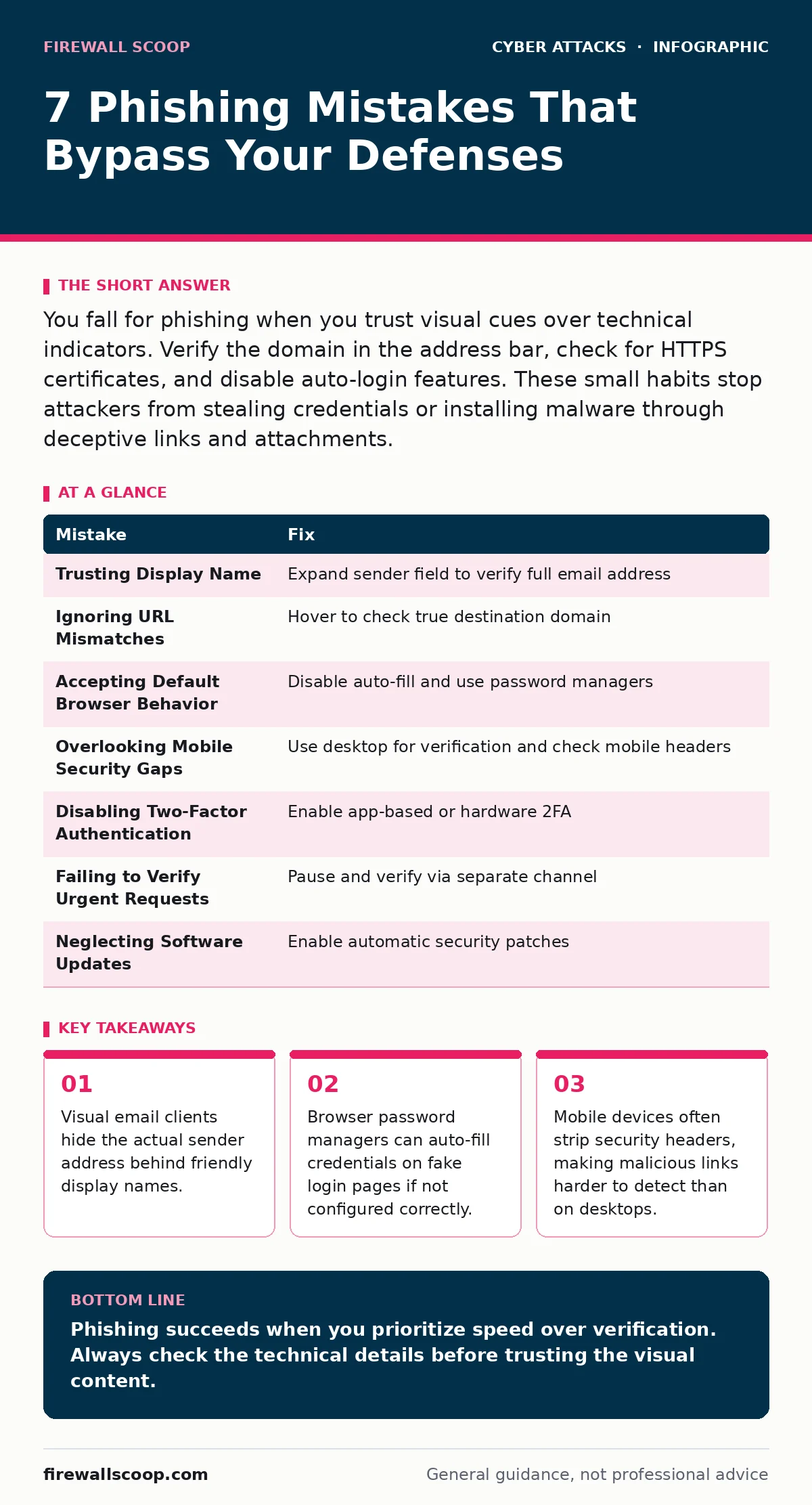
| Mistake | Fix |
|---|---|
| Trusting Display Name | Expand sender field to verify full email address |
| Ignoring URL Mismatches | Hover to check true destination domain |
| Accepting Default Browser Behavior | Disable auto-fill and use password managers |
| Overlooking Mobile Security Gaps | Use desktop for verification and check mobile headers |
| Disabling Two-Factor Authentication | Enable app-based or hardware 2FA |
| Failing to Verify Urgent Requests | Pause and verify via separate channel |
| Neglecting Software Updates | Enable automatic security patches |
Key takeaways
- Visual email clients hide the actual sender address behind friendly display names.
- Browser password managers can auto-fill credentials on fake login pages if not configured correctly.
- Mobile devices often strip security headers, making malicious links harder to detect than on desktops.
Phishing succeeds when you prioritize speed over verification. Always check the technical details before trusting the visual content.
Frequently asked questions
Can phishing emails infect my device without clicking anything?
Yes, if your software is outdated, simply viewing certain attachments or visiting linked sites can trigger exploits. Keep your systems patched to prevent this.
How do I know if a URL is fake?
Hover over the link to see the true destination. Check for misspellings, unexpected subdomains, or domains that do not match the expected service.
Is two-factor authentication enough to stop phishing?
It stops account takeover if your password is stolen, but it does not prevent malware installation or data theft from other sources. Use it with other defenses.
What should I do if I already clicked a phishing link?
Change your passwords immediately, enable two-factor authentication, and run a security scan on your device. Monitor your accounts for unusual activity.
How this guide was produced: written by the Firewall Scoop editorial team with AI assistance, checked against the public references listed below, and reviewed when the facts change. See our editorial policy or report an error.