7 Mistakes That Leave You Open to Baiting Attacks
Baiting relies on curiosity, not technical skill. You give attackers access because you ignore the mismatch between the file name and its actual content type.

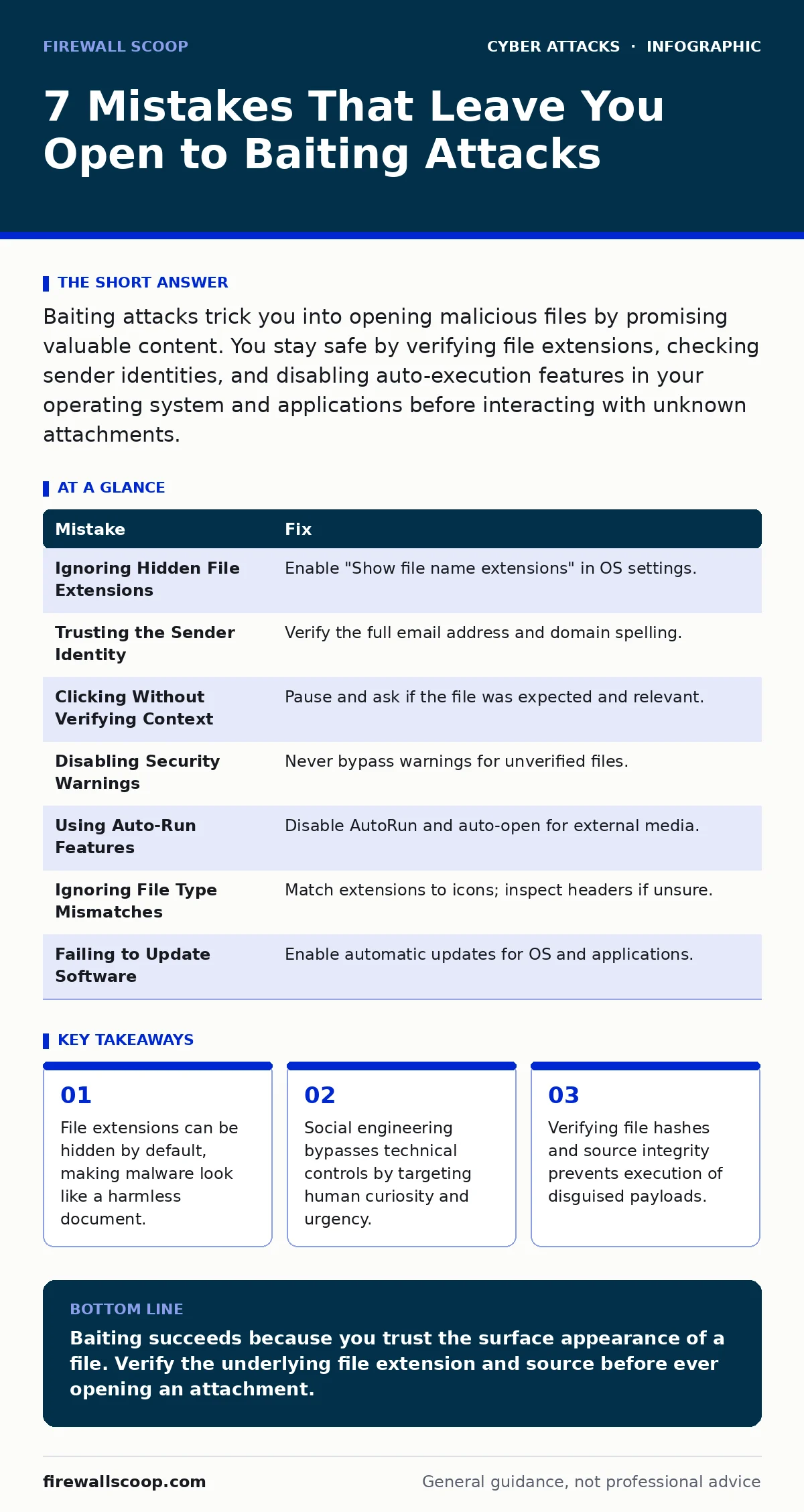
Baiting attacks trick you into opening malicious files by promising valuable content. You stay safe by verifying file extensions, checking sender identities, and disabling auto-execution features in your operating system and applications before interacting with unknown attachments.
Mistake 1: Ignoring Hidden File Extensions
Windows and macOS often hide known file extensions by default. You see a file named "Invoice.pdf.exe" but your system displays only "Invoice.pdf". This visual trick is the core mechanism of baiting. The attacker relies on your trust in familiar icons and names. When you double-click, the operating system executes the code, not the document viewer.
Why it hurts:
You execute a program thinking you are opening a document. The malware gains immediate access to your user environment. It can install keyloggers, steal credentials, or encrypt your files before you realize anything is wrong. The damage occurs because the interface lies about the file type.
The fix:
Configure your file explorer to show all file extensions. On Windows, open File Explorer, click View, and enable "File name extensions". On macOS, open Finder, select Preferences, and check "Show all filename extensions". This reveals the true nature of every file. If you see ".exe", ".scr", or ".vbs" attached to a document name, delete the file immediately.
Mistake 2: Trusting the Sender Identity
Email addresses can be spoofed to appear as if they come from a trusted colleague or vendor. Attackers register domains that look similar to legitimate ones. This technique relates to typosquatting, where a hacker owns a domain with a single letter missing or swapped. You see a message from "hr-department.com" instead of "hr-department.org". Your brain fills in the gap.
Why it hurts:
You bypass your internal security checks because the sender looks familiar. The attachment passes through basic filters because it appears to come from a known entity. The trust you place in the sender name overrides your caution about the content. This allows the bait to reach your desktop without triggering alerts.
The fix:
Inspect the full email address, not just the display name. Hover over the sender to reveal the actual email string. Check for subtle misspellings or unusual domain suffixes. If the sender claims to be from a large organization, verify the domain matches their official website exactly. Do not trust the display name alone.
Mistake 3: Clicking Without Verifying Context
You receive an email with an unexpected attachment. The subject line promises a bonus, a urgent legal notice, or exclusive media. Your curiosity drives you to click. You do not pause to ask if this content makes sense. Did you request this file? Does the sender normally share this type of data? Skipping this verification step is a critical error.
Why it hurts:
Contextual verification is the last line of defense. Without it, you cannot distinguish between a legitimate surprise and a targeted trap. The attacker counts on your momentum. Once you click, the payload executes. You lose control of your system because you accepted the premise of the message without questioning its origin or relevance.
The fix:
Pause for 10 seconds before opening any unexpected attachment. Ask yourself three questions: Did I expect this file? Does the sender normally send this format? Is there a way to verify the content through a separate channel? If the answer to any question is no, delete the email. Contact the sender via a different method to confirm.
Mistake 4: Disabling Security Warnings
Modern operating systems and browsers display warnings when you attempt to open potentially dangerous files. These warnings appear because the file lacks a digital signature or comes from an untrusted source. You click "Run anyway" or "Keep" to access the content. You treat the warning as an inconvenience rather than a protective measure.
Why it hurts:
These warnings are generated by heuristic analysis that detects suspicious behavior or origins. Bypassing them removes the safety net designed to stop unknown executables. You explicitly tell the system that you trust the file, overriding its assessment. This grants the malware the permissions it needs to operate freely on your machine.
The fix:
Never dismiss security warnings for files you did not download from a verified source. If a warning appears, close the application and delete the file. Investigate the source through a clean channel. Configure your browser and operating system to block dangerous content by default. Treat every warning as a confirmed threat until proven otherwise.
Mistake 5: Using Auto-Run Features
Some devices and software automatically execute files when they are inserted or opened. USB drives with auto-run capabilities can launch malware the moment you plug them in. Software suites may open macros or scripts embedded in documents without asking. This convenience feature is a backdoor for attackers.
Why it hurts:
You do not need to click anything. The execution happens automatically upon connection or file access. This removes human judgment from the equation entirely. The malware runs with the permissions of your user account. It can spread to connected networks or exfiltrate data before you even see the file interface.
The fix:
Disable auto-run and auto-open features on all devices. On Windows, use Group Policy or Registry settings to turn off AutoRun for all drives. On macOS, ensure that external drives do not mount with executable permissions. For software, disable macro execution by default. Require explicit user action for any script or program to run.
Mistake 6: Ignoring File Type Mismatches
An attacker names a malicious script "Photo.jpg.txt". Your system displays "Photo.jpg" because it hides extensions. Even if you see the full name, you might ignore the ".txt" part, assuming it is just a label. The file is actually a text document containing code. When you open it, a secondary process converts it into an executable format.
Why it hurts:
The mismatch between the icon and the file type is a red flag. Your brain sees a picture icon and expects an image. The underlying system sees a text file and may execute embedded commands. This confusion allows the attacker to bypass visual inspection. You open the file expecting one thing but receive a malicious payload.
The fix:
Always match the file extension to the icon and the content. If a file claims to be an image but has a ".txt", ".vbs", or ".ps1" extension, treat it as malware. Use a hex editor or a file command to inspect the header bytes if you are unsure. Standard image files start with specific byte sequences. Any deviation indicates a spoofed file.
Mistake 7: Failing to Update Software
Outdated operating systems and applications contain known vulnerabilities. Attackers use these flaws to execute code even when you do not click anything. This relates to drive-by downloads, where merely visiting a compromised site triggers an infection. Your outdated software lacks the patches needed to block these exploits.
Why it hurts:
You become vulnerable to attacks that require no interaction. The bait does not need to be clicked; it just needs to be loaded. The outdated code fails to enforce security boundaries. The attacker gains access through the application layer. This bypasses your awareness entirely, making the attack invisible until damage is done.
The fix:
Enable automatic updates for your operating system and all installed applications. Patch management closes known security holes. Regular updates ensure that your system has the latest defenses against known exploit kits. Delaying updates leaves you exposed to attacks that have been publicly documented for years.
| Mistake | Fix |
|---|---|
| Ignoring Hidden File Extensions | Enable "Show file name extensions" in OS settings. |
| Trusting the Sender Identity | Verify the full email address and domain spelling. |
| Clicking Without Verifying Context | Pause and ask if the file was expected and relevant. |
| Disabling Security Warnings | Never bypass warnings for unverified files. |
| Using Auto-Run Features | Disable AutoRun and auto-open for external media. |
| Ignoring File Type Mismatches | Match extensions to icons; inspect headers if unsure. |
| Failing to Update Software | Enable automatic updates for OS and applications. |
Key takeaways
- File extensions can be hidden by default, making malware look like a harmless document.
- Social engineering bypasses technical controls by targeting human curiosity and urgency.
- Verifying file hashes and source integrity prevents execution of disguised payloads.
Baiting succeeds because you trust the surface appearance of a file. Verify the underlying file extension and source before ever opening an attachment.
Frequently asked questions
How do I know if a PDF is actually malware?
Check the file extension. If it ends in .exe, .scr, or .vbs, it is not a PDF. If the extension is hidden, enable showing extensions in your file explorer settings to see the true type.
Can antivirus software stop all baiting attacks?
Antivirus helps, but it cannot stop every zero-day exploit. If you execute a file with high privileges, the malware runs before the antivirus can fully analyze it. Human verification is the primary defense.
What is the difference between baiting and phishing?
Phishing usually involves fake websites to steal login credentials. Baiting involves malicious files or media that you download and execute. Both use social engineering, but the delivery mechanism differs.
Should I use multi-factor authentication to stop baiting?
Multi-factor authentication protects your accounts if credentials are stolen. It does not prevent the malware from executing on your device. You still need to avoid opening the baited file to protect your system.
How this guide was produced: written by the Firewall Scoop editorial team with AI assistance, checked against the public references listed below, and reviewed when the facts change. See our editorial policy or report an error.